Claude Code Tutorial: Best Practices for Terminal AI-Augmented Coding
Master Claude Code best practices. Learn context management, CLI command guidelines, CLAUDE.md setup, subagents, and how to avoid common coding errors.
You open Claude Code, type a task, and it starts doing things. Files get read, commands run, changes appear. It feels like magic until it doesn't. Claude starts going off track, gives you something half-right, or makes a change that breaks something three files away.
This isn't a Claude problem. It's a workflow problem. Claude Code is not a smarter autocomplete. It's an autonomous agent, and working with it well requires a different approach than prompting a chatbot.
The good news: a handful of habits will dramatically change your results. These patterns come from Anthropic's own teams and engineers who have used Claude Code across real production codebases.
Context Management: The Core Claude Code Constraint
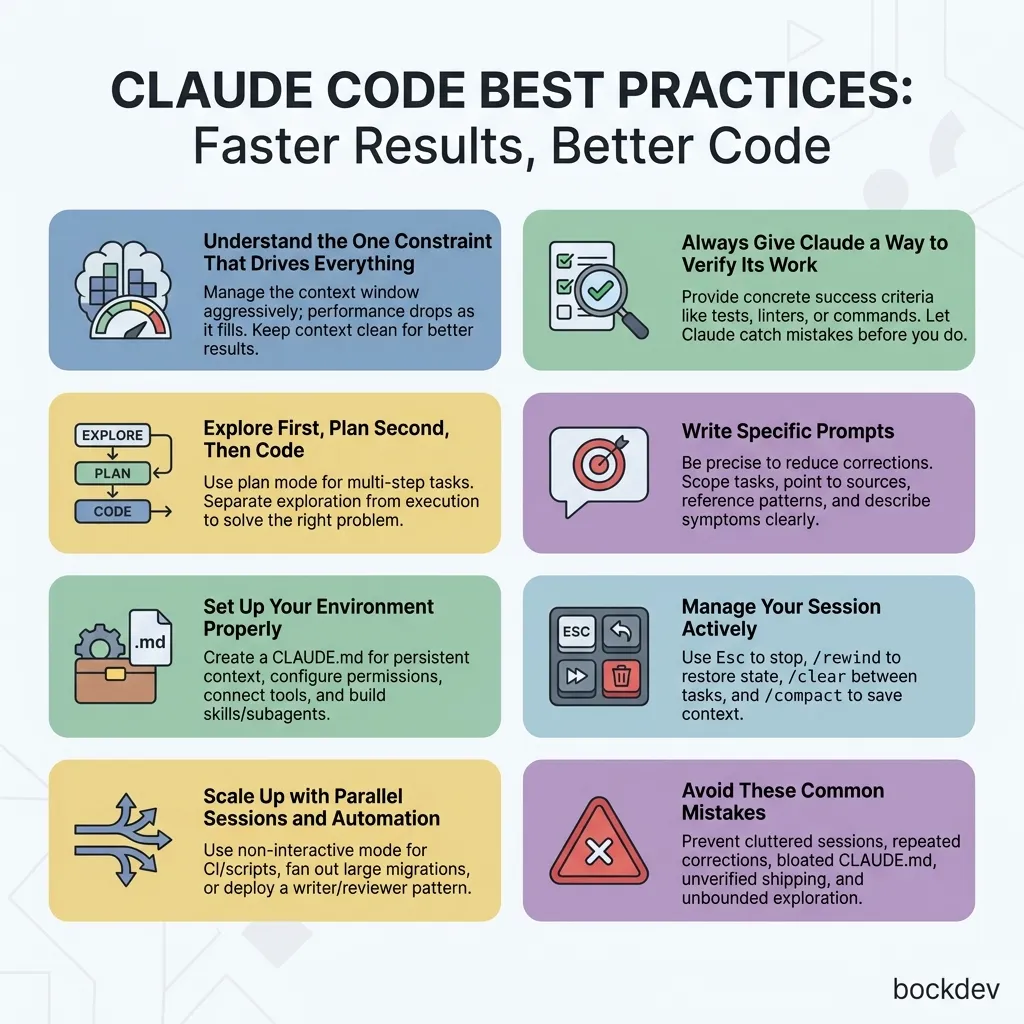
Almost every best practice in Claude Code connects back to one thing: the context window.
Every message you send, every file Claude reads, every command output gets loaded into the context window. It fills up fast. And as it fills, Claude's performance drops. It forgets earlier instructions, makes more mistakes, and loses track of the original goal.
Manage context aggressively and everything else gets easier.
Success Verification: Tests, Linters, and Execution
This is the highest-leverage habit you can build. When Claude can check its own output, it catches its own mistakes before you do.
Without a success criterion, Claude produces something that looks plausible but may not actually work. You become the only feedback loop.
Scenario
Weak prompt
Strong prompt
Function implementation
"implement email validation"
"write a validateEmail function. test cases: user@example.com = true, invalid = false. run tests after."
UI changes
"make the dashboard look better"
"[paste screenshot] implement this design. take a screenshot, compare to original, fix differences."
Bug fix
"the build is failing"
"build fails with [paste error]. fix it and verify the build succeeds. fix the root cause, don't suppress the error."
Your verification can be a test suite, a linter, or a simple Bash command. Whatever it is, make it concrete.
The 4-Step Workflow: Explore, Plan, Code, and Commit
Jumping straight into coding often means solving the wrong problem. Use plan mode to separate exploration from execution.
A workflow that works well in four steps:
Step 1: Explore (plan mode on)
read /src/auth and understand how we handle sessions and login.also look at how we manage environment variables for secrets.
Step 2: Plan (still in plan mode)
I want to add Google OAuth. What files need to change?What's the session flow? Create a plan.
Press Ctrl+G to open the plan in your editor and refine it before Claude starts coding.
Step 3: Implement (switch out of plan mode)
implement the OAuth flow from your plan. write tests for thecallback handler, run the test suite and fix any failures.
Step 4: Commit
commit with a descriptive message and open a PR
Skip the planning step for small, obvious changes. If you can describe the diff in one sentence, just do it directly.
Prompt Engineering for Claude Code (Specific Formats)
Claude can infer a lot, but it cannot read your mind. The more precise you are, the fewer corrections you need to make.
Strategy
Weak
Strong
Scope the task
"add tests for foo.py"
"write a test for foo.py covering the case where the user is logged out. avoid mocks."
Point to a source
"why does ExecutionFactory have a weird API?"
"look through ExecutionFactory's git history and summarize how its API came to be"
Reference existing patterns
"add a calendar widget"
"look at HotDogWidget.php to understand the pattern, then implement a calendar widget following the same approach"
Describe the symptom
"fix the login bug"
"login fails after session timeout. check src/auth/ especially token refresh. write a failing test, then fix it."
You can also pass rich content directly:
Reference files with @filename so Claude reads them before responding
Paste screenshots or drag and drop images into the prompt
Pipe data with cat error.log | claude
Give Claude URLs for documentation and API references
Project Environment Setup: CLAUDE.md and Permissions
A few one-time setup steps make every future session better.
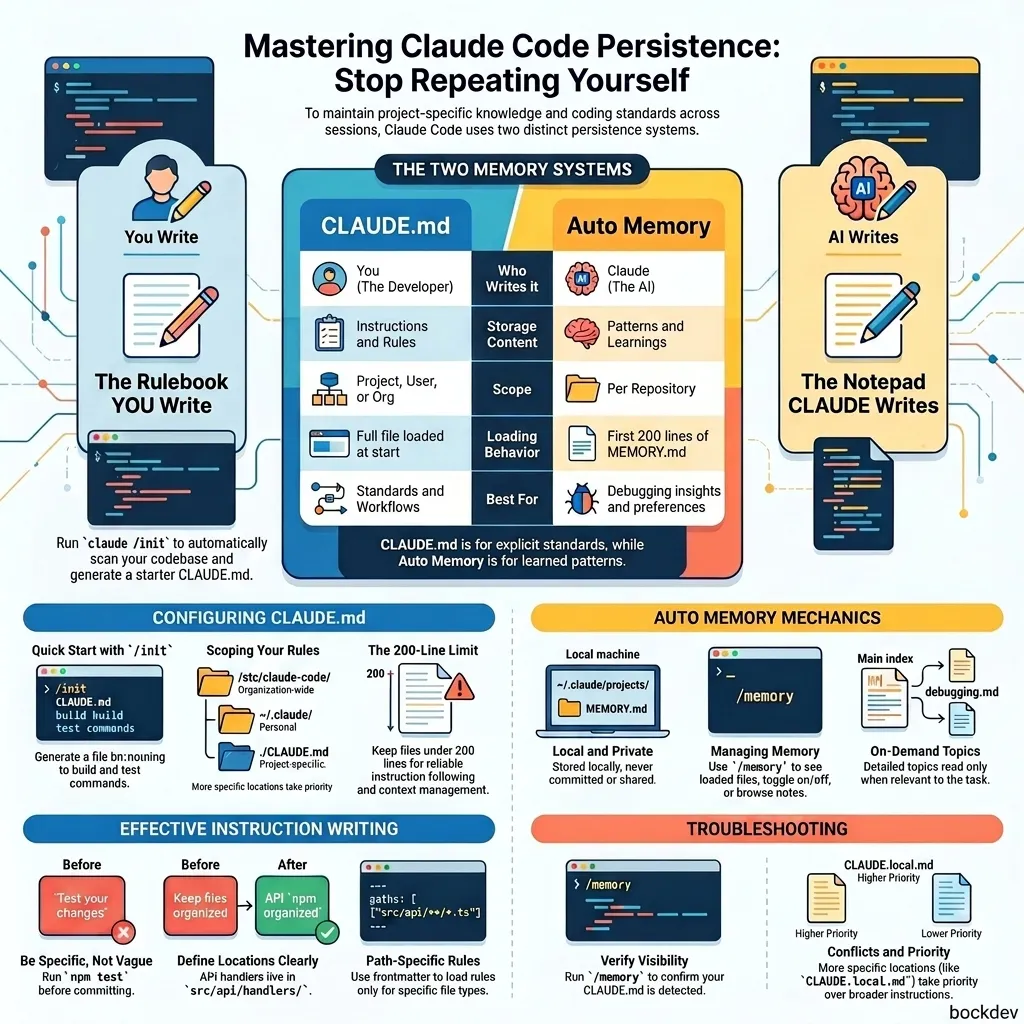
CLAUDE.md is a special file Claude reads at the start of every session. It gives Claude persistent context it cannot pick up from code alone.
Run /init to generate a starter file from your project, then refine it over time.
markdown
# Code style- Use ES modules (import/export), not CommonJS (require)- Destructure imports when possible# Workflow- Typecheck after making a series of changes- Run single tests, not the whole suite, for speed
Include
Exclude
Bash commands Claude cannot guess
Anything Claude can figure out from reading code
Code style rules that differ from defaults
Standard conventions Claude already knows
Testing instructions and preferred runners
Detailed API docs (link instead)
Branch naming and PR conventions
Information that changes frequently
Environment quirks and required env vars
File-by-file codebase descriptions
Keep it short. If Claude keeps doing something wrong despite having a rule, the file is probably too long and the rule is getting buried.
You can place CLAUDE.md files in multiple locations:
~/.claude/CLAUDE.md # applies to all sessions./CLAUDE.md # shared with your team via git./CLAUDE.local.md # personal project notes, add to .gitignore./src/CLAUDE.md # picked up when Claude works in that folder
CLAUDE.md files can import other files:
markdown
See @README.md for project overview and @package.json for npm commands.# Additional Instructions- Git workflow: @docs/git-instructions.md
Use claude mcp add to connect tools like Notion, Figma, or your database. For GitHub, install the gh CLI. Claude knows how to use it for creating issues, opening PRs, and reading comments.
Skills extend Claude with domain knowledge specific to your project:
markdown
# .claude/skills/api-conventions/SKILL.md---name: api-conventionsdescription: REST API design conventions for our services---- Use kebab-case for URL paths- Use camelCase for JSON properties- Always include pagination for list endpoints
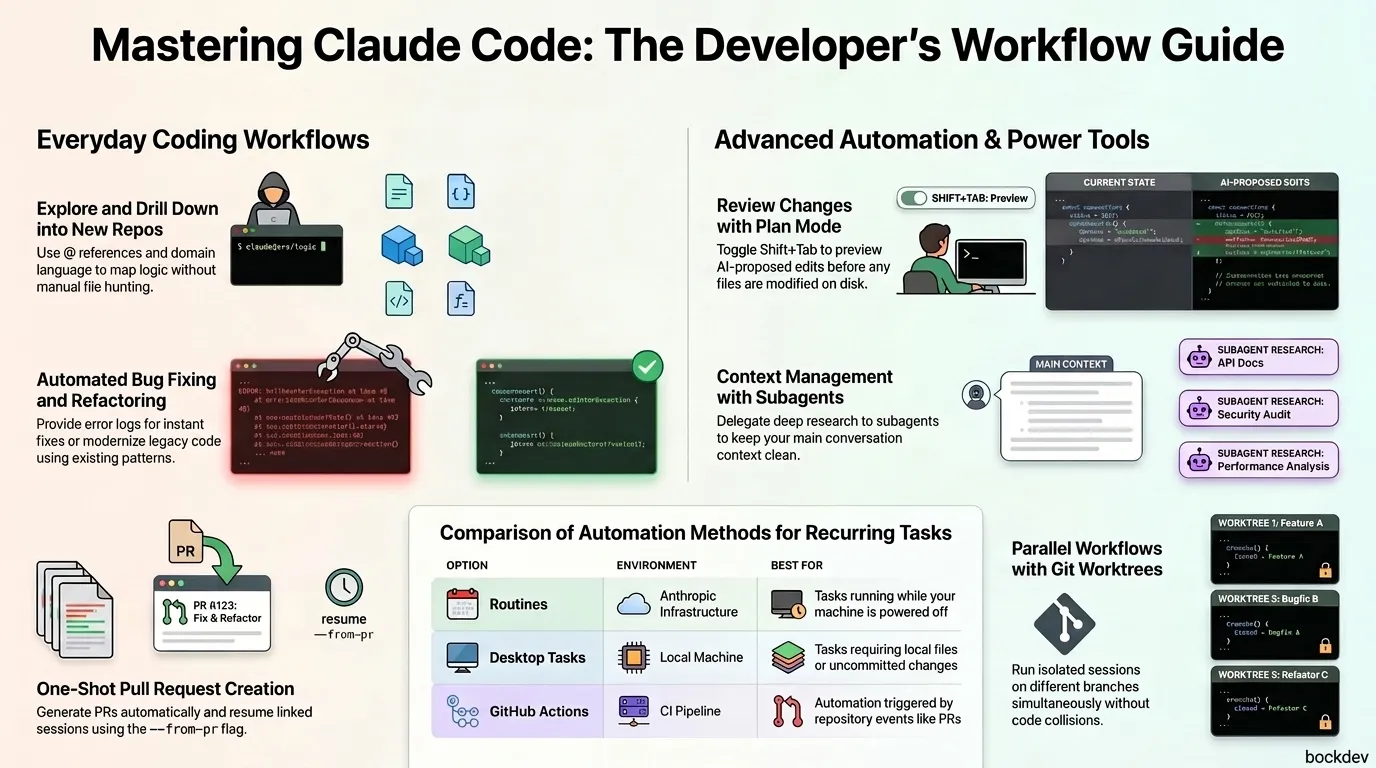
Subagents run in their own context and are useful for isolated tasks like code review:
markdown
# .claude/agents/security-reviewer.md---name: security-reviewerdescription: Reviews code for security vulnerabilitiestools: Read, Grep, Glob, Bashmodel: opus---You are a senior security engineer. Review code for injectionvulnerabilities, auth flaws, secrets in code, and insecure data handling.
Conversations in Claude Code are persistent and reversible.
Esc: stop Claude mid-action. Context is preserved, you can redirect.
Esc + Esc or /rewind: restore previous conversation and code state.
/clear: reset context entirely. Use this between unrelated tasks.
/compact: compress conversation history. Add instructions like /compact Focus on the API changes.
If you have corrected Claude more than twice on the same issue, the context is polluted with failed attempts. Run /clear and start fresh with a better prompt.
Use subagents for investigation so your main context stays clean:
Use subagents to investigate how our authentication system handlestoken refresh and whether we have any existing OAuth utilities to reuse.
Every prompt creates a checkpoint. Run /rewind to restore conversation, code, or both to any earlier point.
Automation & Parallel Sessions: Running Claude Code at Scale
Once you are effective with a single Claude session, you can multiply your output.
Run Claude in CI pipelines, pre-commit hooks, or scripts:
bash
# One-off queryclaude -p "Explain what this project does"# Structured output for scriptsclaude -p "List all API endpoints" --output-format json# Streaming for real-time processingclaude -p "Analyze this log file" --output-format stream-json
Run two sessions where one writes and the other reviews:
Session A (Writer)
Session B (Reviewer)
Implement a rate limiter for our API endpoints
Review the rate limiter in @src/middleware/rateLimiter.ts. Look for edge cases and race conditions.
Here's the review: [output]. Address these issues.
A fresh context improves review quality since Claude is not biased toward code it just wrote.
5 Common Mistakes Developers Make with Claude Code
The kitchen sink session. You start on one task, ask something unrelated, then go back. Context is cluttered. Fix: use /clear between unrelated tasks.
Correcting over and over. Claude is still wrong after two corrections. Fix: run /clear and write a better prompt that incorporates what you learned.
The bloated CLAUDE.md. Too many rules means important ones get ignored. Fix: prune ruthlessly. If Claude does something correctly without the rule, delete it.
Shipping without verification. Claude's output looks right but does not handle edge cases. Fix: always provide a test, script, or screenshot to verify.
Unbounded exploration. You ask Claude to "investigate" with no scope. It reads hundreds of files and fills the context. Fix: scope narrowly or use subagents.
1. Why does Claude seem to forget earlier instructions in long sessions?
The context window fills up. As it does, Claude's performance drops and it may lose track of earlier rules. Use /clear between tasks and /compact to manage history.
2. What is the difference between CLAUDE.md and a skill?
CLAUDE.md loads every session and holds rules that always apply. Skills live in .claude/skills/ and load on demand when relevant. Use skills for domain knowledge or workflows that only matter sometimes.
3. When should I use plan mode vs. just asking Claude to code directly?
Use plan mode when the task modifies multiple files, you are unsure of the approach, or you are unfamiliar with the code. Skip it for small, obvious changes you could describe in one sentence.
4. What does a subagent do differently than just asking Claude a question?
Subagents run in a separate context window. They can read dozens of files and explore without consuming your main conversation's context. Their findings come back as a summary.
5. How do I stop Claude mid-task without losing my progress?
Press Esc. Claude stops and the context is preserved. You can then redirect, correct, or rewind.
6. Can I run Claude Code in automated pipelines or CI?
Yes. Use claude -p "your prompt" for non-interactive mode. Add --output-format json or --output-format stream-json for structured output. Use --permission-mode auto to skip approval prompts.
7. How do I use Claude Code with multiple developers on a team?
Check your project-root CLAUDE.md into git so the whole team benefits. Use CLAUDE.local.md for personal preferences and add it to .gitignore.
8. What is the best way to handle a task that spans multiple sessions?
Run claude --continue to resume the most recent session, or claude --resume to pick from a list. Name sessions with /rename so you can find them later.
9. If Claude keeps getting something wrong, what should I do?
After two failed corrections in the same session, run /clear and rewrite the prompt from scratch. Include what you learned from the failures. A clean session with a better prompt almost always wins.
10. What is the fastest way to verify that Claude's implementation actually works?
Give Claude a test to run, a script to execute, or a screenshot to compare. If none of those are practical, write a simple Bash command that checks the expected output. Never ship something you cannot verify.