How Claude Code Works: The Agentic Loop, Tools, and Sessions Explained
Learn how Claude Code works as a terminal-based agentic assistant. Covers the agentic loop, built-in tools, session management, context windows, and safety features for developers.
You type a single command. Then Claude reads your files, runs your tests, finds the bug, fixes it, and verifies everything works. No copy-pasting between tools. No manual navigation. Just a task and a result.
That kind of end-to-end automation is not magic. It is a specific design: an agentic loop backed by real tools that can act on your system. If you are new to this terminal assistant, check out our guide on AI-augmented terminal development to get set up. Understanding how this works will help you use Claude Code more effectively and trust it with bigger tasks.
When you give Claude a task, it works through three phases: gather context, take action, and verify results. These phases repeat until the task is done.
A simple question might only need the first phase. A bug fix will cycle through all three multiple times. A large refactor might involve dozens of loops.
Here is the key part: Claude decides what each step requires based on what it learned from the previous step. It is not following a fixed script. It is reasoning as it goes. This shifts the developer's role from writing every line of code to acting as an orchestrator, a method known as intent-driven development.
You are part of the loop too. You can interrupt at any point, give more context, or ask Claude to try a different approach. Claude works on its own but stays responsive to you.
Claude Code is not just a chat interface. It has real tools that let it act on your project. Without tools, a language model can only respond with text. With tools, it can read files, edit code, run commands, and browse the web.
Category
What Claude Can Do
File operations
Read files, edit code, create new files, rename and reorganize
Search
Find files by pattern, search content with regex, explore codebases
Execution
Run shell commands, start servers, run tests, use git
Web
Search the web, fetch documentation, look up error messages
Code intelligence
See type errors and warnings, jump to definitions, find references
Here is a realistic example. You say "fix the failing tests." Claude might:
Run the test suite to see what is failing
Read the error output
Search for the relevant source files
Read those files to understand the code
Edit the files to fix the issue
Run the tests again to verify the fix
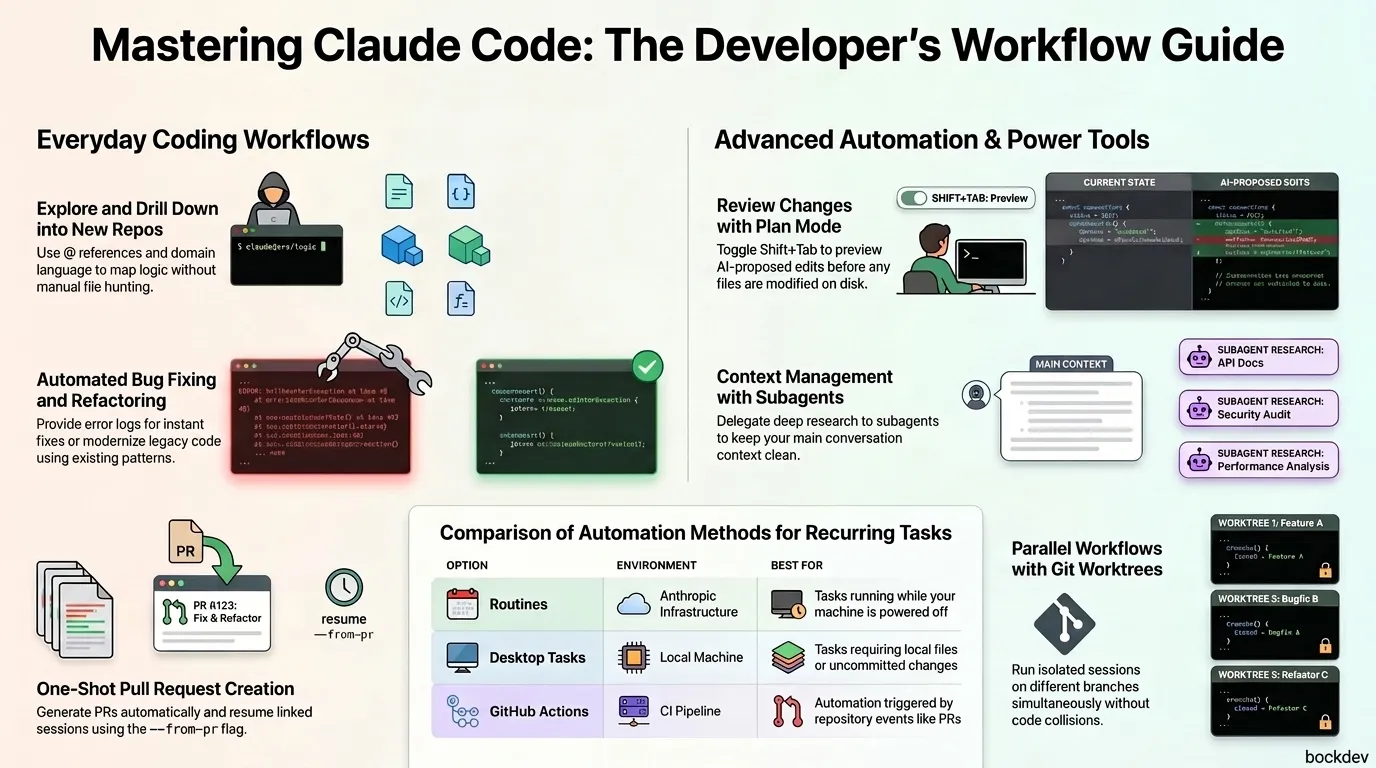
Each step returns new information that feeds into the next decision. That is the agentic loop working in practice. For more examples of how to utilize these steps in your daily coding routines, explore our guide on Claude Code common workflows.
When you run claude inside a directory, Claude Code gets access to:
Your project files - everything in your directory and subdirectories
Your terminal - any command you could run yourself (git, npm, build tools, scripts)
Your git state - current branch, uncommitted changes, recent commits
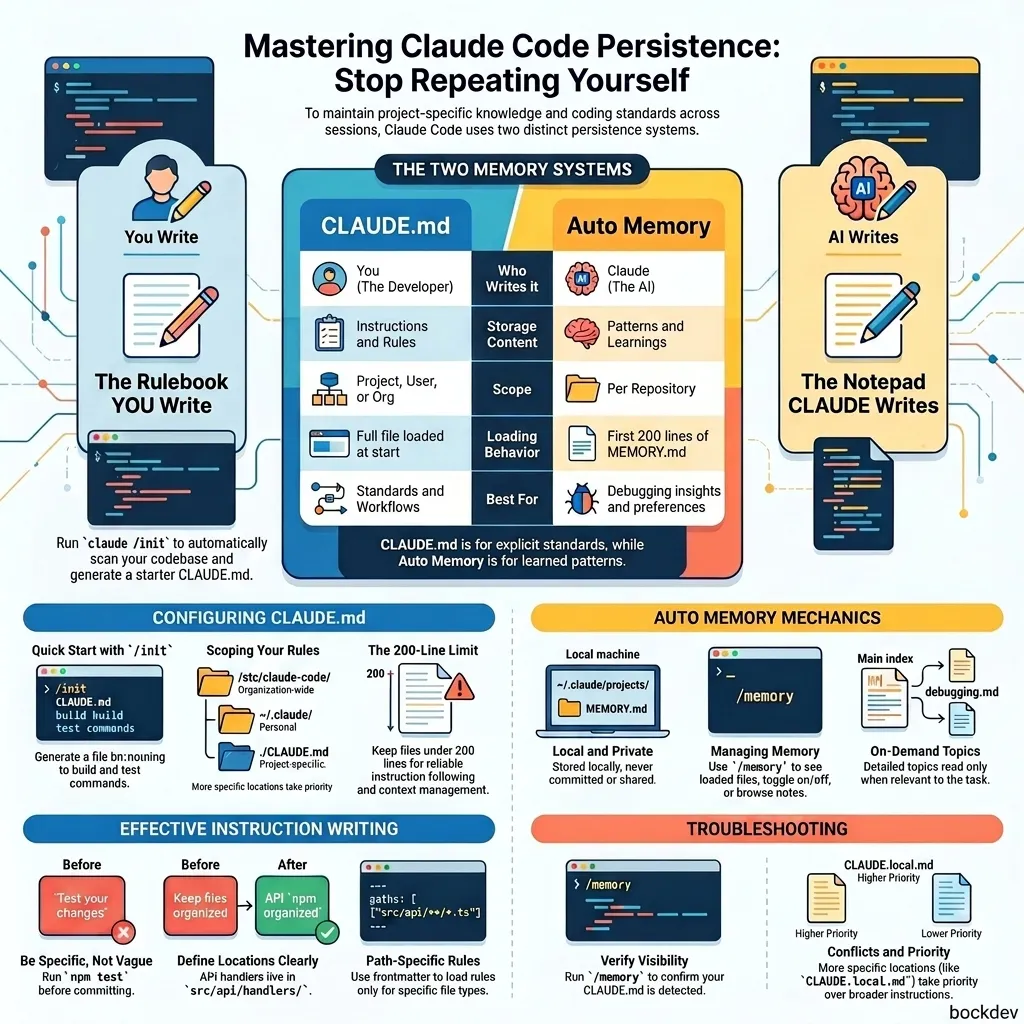
CLAUDE.md - a markdown file where you store project-specific instructions that load every session
Auto memory - learnings Claude saves automatically as you work, like patterns and preferences
Extensions - MCP servers, skills, subagents, and browser integration if configured
Because Claude sees your whole project, it can work across it. This is different from inline code assistants that only see the current file open in your editor.
Claude sees whichever branch you are currently on. When you switch branches, Claude sees the new branch's files. Your conversation history stays the same across branch switches.
For parallel work, use git worktrees. Each worktree is a separate directory, which means you can run separate Claude sessions in each one.
Claude's context window holds your conversation history, file contents, command outputs, CLAUDE.md, auto memory, and system instructions. As you work, this fills up.
Claude compacts automatically when context gets full. It clears older tool outputs first, then summarizes the conversation if needed. Your requests and key code snippets are preserved. Detailed instructions from early in the session may be lost.
Best practice: Put persistent rules in CLAUDE.md instead of relying on conversation history.
To control what gets preserved during compaction, add a "Compact Instructions" section to your CLAUDE.md:
markdown
## Compact InstructionsAlways preserve:- The API design decisions we agreed on- The test-first approach for all new features- The folder structure conventions in src/
You can also run /compact with a focus:
/compact focus on the API changes
Run /context to see what is currently using space in your context window.
Before Claude edits any file, it snapshots the current contents. If something goes wrong, press Escape twice to rewind. Or just ask Claude to undo.
Checkpoints are separate from git and only cover file changes. Actions that affect remote systems (databases, APIs, deployments) cannot be checkpointed, which is why Claude asks before running commands with external side effects.
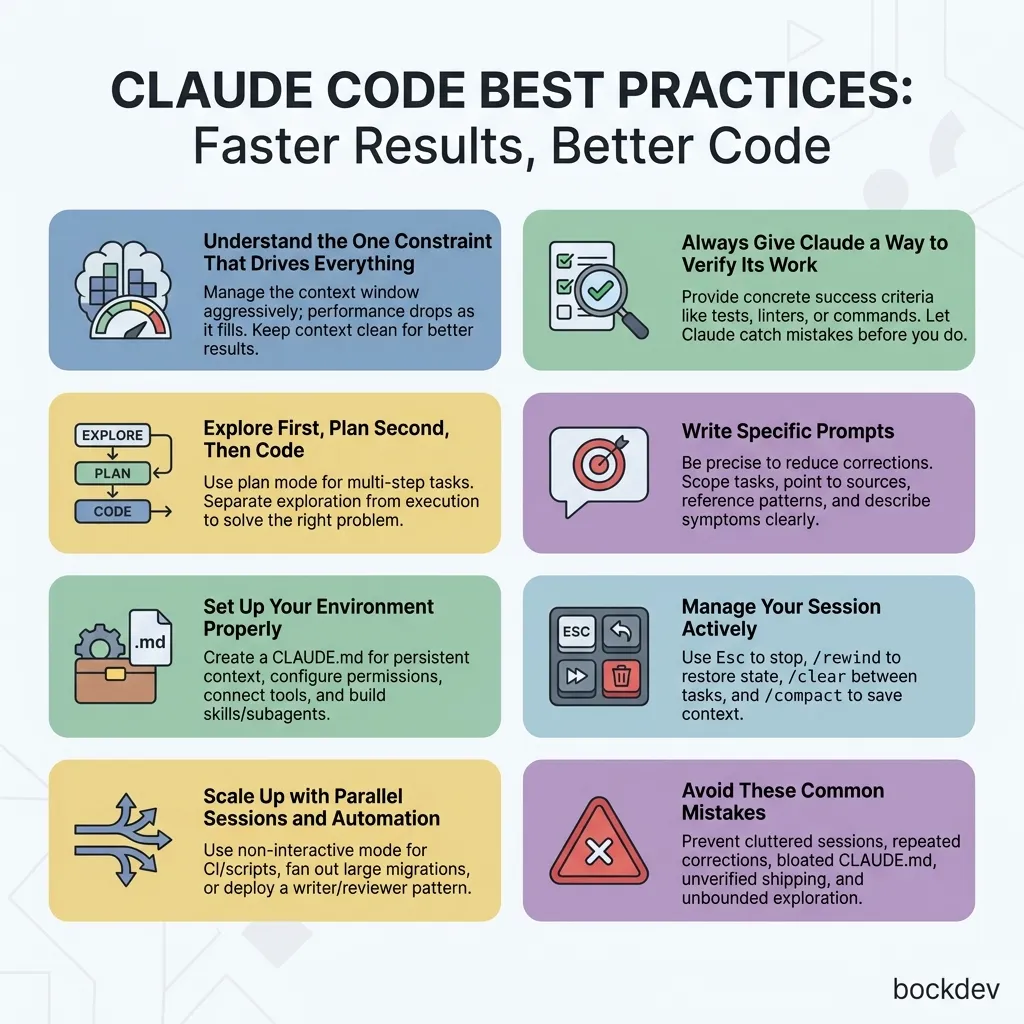
To maximize your efficiency and get the most out of your sessions, you can review our full guide on Claude Code best practices.
Start with a specific prompt. Vague prompts work, but specific ones often succeed on the first try with fewer corrections.
# VagueFix the login bug# SpecificThe checkout flow is broken for users with expired cards.Check src/payments/ for the issue, especially token refresh.Write a failing test first, then fix it.
Give Claude something to verify against. Claude performs better when it can check its own work.
Use plan mode for complex tasks. Press Shift+Tab twice to enter plan mode. Ask Claude to analyze first, review the plan, then let it implement.
Read src/auth/ and understand how we handle sessions.Then create a plan for adding OAuth support.
Interrupt freely. If Claude is going down the wrong path, type your correction and press Enter. You do not have to wait for it to finish.
Delegate, do not dictate. Give context and direction, then trust Claude to figure out the details. You do not need to specify which files to read or which commands to run.
It is a three-phase cycle: gather context, take action, and verify results. Claude repeats these phases, chaining tool uses together, until your task is complete.
2. What tools does Claude Code have built in?
File operations, search, shell execution, web browsing, and code intelligence (with the right plugins). You can extend these with MCP servers, skills, and subagents.
3. Does Claude remember my previous sessions?
No. Each session starts fresh. Use CLAUDE.md for persistent instructions, and Claude's auto memory feature for learnings that carry over automatically.
4. How do I resume a session I was working in earlier?
Run claude --continue to pick up the last session, or claude --resume to choose from a list of past sessions.
5. What happens when the context window fills up?
Claude compacts automatically. It clears older tool outputs first, then summarizes the conversation. Put persistent rules in CLAUDE.md so they do not get lost during compaction.
6. Can I undo changes Claude makes to my files?
Yes. Claude snapshots every file before editing it. Press Escape twice to rewind, or ask Claude to undo. Note: this only covers file changes, not actions on remote systems.
7. How do I stop Claude from asking for permission every time?
Add trusted commands to .claude/settings.json under allowedCommands. You can also switch to auto-accept edits mode with Shift+Tab.
8. What is CLAUDE.md and why does it matter?
It is a markdown file in your project where you store instructions, conventions, and context for Claude. It loads at the start of every session, so anything you put there persists across conversations.
9. Can I run Claude Code in a CI/CD pipeline?
Yes. Claude Code supports GitHub Actions and similar pipelines. The same agentic loop runs in CI environments.
10. What is the difference between resuming and forking a session?
Resuming appends new messages to the same session under the same ID. Forking copies the conversation history into a new session, leaving the original unchanged so you can explore a different direction safely.