How to Use AI as a Worldbuilding Partner for Your Fantasy Novel
Turn AI into a reliable worldbuilding partner for your fantasy novel with a world bible system, prompt templates, and tools that keep your lore consistent.
AIWorldbuildingFantasy Novel

A 7-minute routine to find and limit how AI tools and platforms collect, store, and train on your personal data.
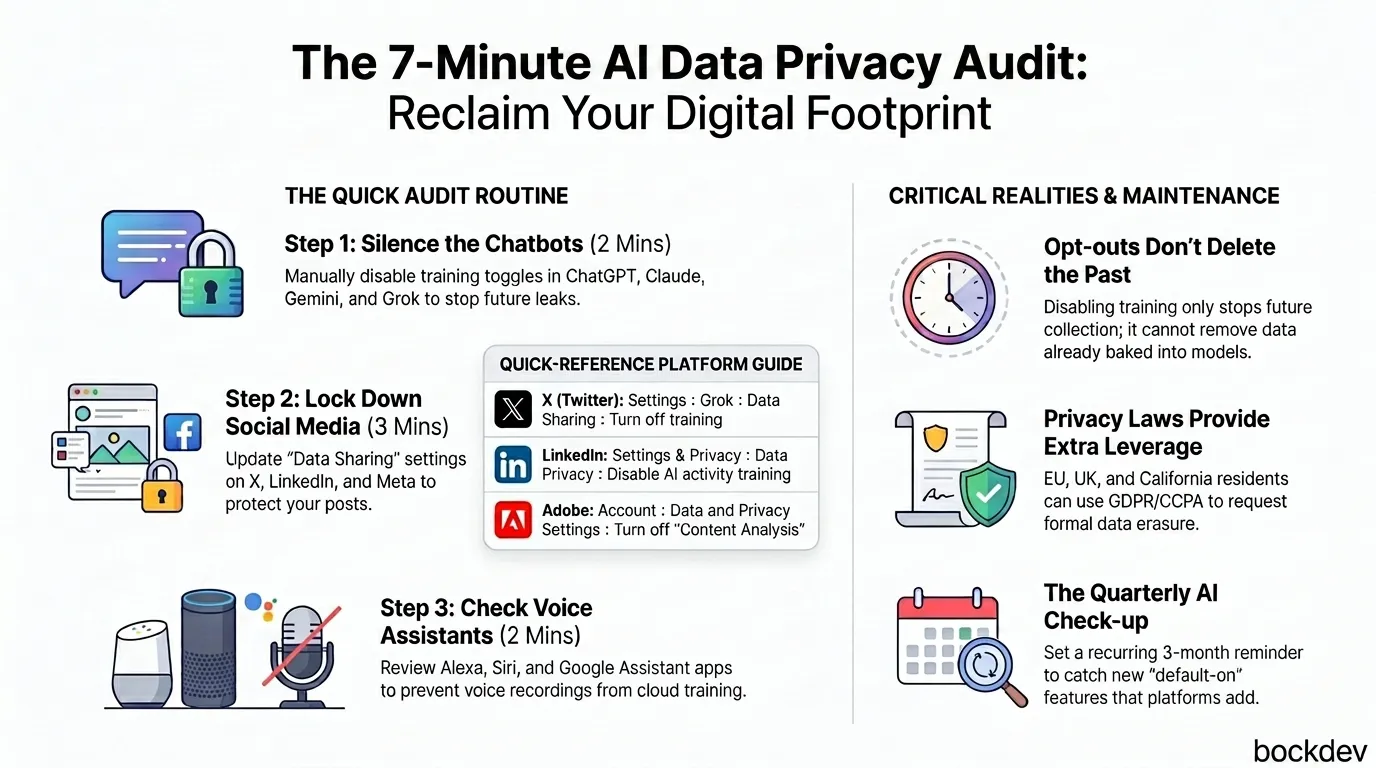
You post a photo, ask a chatbot a quick question, or sync your email to a "smart" assistant, and you move on with your day. Nothing feels risky about any single action. But behind the scenes, that data often gets pulled into a training pipeline you never agreed to in any meaningful way.
Most people assume opting out is either impossible or something you'd need a lawyer for. It isn't. Nearly every major platform, from ChatGPT to Meta to Microsoft 365, has a settings page built for exactly this. The problem is that these controls are scattered, buried, and rarely advertised.
This guide walks you through a focused 7-minute audit. You won't fix everything, but you'll close the biggest gaps, the ones that quietly leak the most data, and build a habit you can repeat every few months.
By default, most platforms treat your activity as fair game for improving their models. By default, OpenAI uses your ChatGPT conversations to train its models, even if you pay for ChatGPT Plus, while Team, Enterprise, and API accounts are excluded by default.
Social platforms work the same way. Meta trains its models with users' public posts, comments, and conversations with Meta AI, though it does not use private message content. The catch: opt-out is currently limited to users in the EU, since US users don't get that option, though Meta says it doesn't scrape posts set to private.
Even productivity tools aren't exempt. Microsoft 365 users are automatically opted in to having documents in Word, Excel, Outlook, and PowerPoint used for AI training unless they manually disable it. And it's not just text: Amazon has removed the ability for some Echo users to stop their voice recordings from being sent to the cloud, meaning that data is now used for training whether the user wants it or not.
The takeaway: assume every connected service is collecting unless you've explicitly checked otherwise.
Start with whatever AI assistant you use daily, since this is usually where the most sensitive conversations live.
ChatGPT
Settings > Data Controls > "Improve the model for everyone" → OffTurning this off prevents future conversations from being used for training. You can also use Temporary Chat mode for individual conversations, which are not used for training and don't appear in your history. This is useful for one-off sensitive questions where you don't want a permanent record at all.
Claude
Settings > Privacy > "Help improve our AI models" → Turn offThis stops your conversations from being used to improve Anthropic's models going forward. As with other platforms, this only affects future activity, not anything already processed.
Google Gemini
myaccount.google.com > Data & Privacy > Web & App Activity > Gemini Apps Activity > Turn OffThis stops future chats from being reviewed by humans, but already-collected data is not erased, and Google's privacy hub notes these chats may be retained for up to three years. If you've used Gemini regularly, it's worth manually deleting old activity rather than relying on the toggle alone.
Grok
Settings > Data Controls > "Improve the Model" → Turn offThis disables xAI from using your conversations and prompts for training. If you also use Grok through X, check the separate "Grok & Third-party Collaborators" toggle under X's settings, since the two controls aren't tied together.
Perplexity
Account Settings > AI Data Retention → OffPerplexity automatically opts users in to having their interactions used for training, so this toggle has to be switched off manually.
Microsoft Copilot / 365
Word/Excel/Outlook > File > Options > Trust Center > Trust Center Settings
> Privacy Options > Privacy Settings > uncheck "Turn on optional connected experiences"
Close and reopen all Office apps for the change to apply. If you use Copilot inside Windows or Edge as well, check the separate Copilot privacy settings under Windows Settings, since the Office toggle doesn't always cover those.
| Platform | Where to go | What it does |
|---|---|---|
| Facebook/Instagram | Settings & Privacy > Settings | Limits public post and comment usage; full opt-out only works in GDPR regions |
| X (Twitter) | Settings > Settings & Privacy > Grok > Data Sharing | Turns off Grok using your posts for training |
| Settings & Privacy > Data Privacy | Disables AI training on your activity and content | |
| Adobe | Account > Data and Privacy Settings | Turns off "Content Analysis," which feeds your saved documents into generative AI training |
If a platform doesn't offer an opt-out (common in the US), your best fallback is restricting visibility. Setting your account to private removes most of the public content that scrapers and crawlers can reach in the first place.
Voice data is one of the most overlooked categories, partly because the settings live in a separate app from the one you actually talk to.
Amazon Alexa
Alexa app > Settings > Alexa Privacy > Manage Your Alexa Data
> Toggle off "Help improve Alexa" and "Use messages to improve transcriptions"
Apple Siri
Settings > Privacy & Security > Analytics & Improvements > Turn off "Improve Siri & Dictation"Google Assistant
myaccount.google.com > Data & Privacy > Web & App ActivityNote that Amazon has pulled back some of these controls on certain Echo devices, so check whether the toggle is actually still available on your hardware before assuming you're covered.
If you live in the EU, UK, California, or another region with strong privacy law, you have stronger leverage than a simple settings toggle.
Under GDPR Article 21, you can object to processing based on legitimate interest, which is the legal basis most AI providers rely on for training. Article 17 covers the right to erasure if the lawful basis for processing is missing. In the US, CCPA grants a right to delete and a right to opt out of sale or sharing of your data, while newer state laws like Colorado's CPA and Minnesota's MCDPA add specific opt-outs from profiling and automated decisions.
For Meta specifically: you can submit a "Right to Object" form inside the Meta Privacy Center, though this option is mainly available in regions with strong privacy laws like the EU and UK. Even then, submitting the request doesn't guarantee approval, since Meta reviews each one rather than granting it automatically.
If you're outside one of these jurisdictions, you likely can't force deletion, but you can still cut off future collection through the platform settings above.
Opting out only stops future collection. It does nothing for content already indexed.
Common Crawl, which many AI companies use as a base dataset, has indexed trillions of web pages, and if you've ever posted anything publicly, it's likely already part of some training set. This is the uncomfortable part of the audit: there's no real "undo" button.
What you can do going forward:
This isn't a one-time fix. Service terms change often, and new AI features tend to launch with default opt-in settings, which quietly undoes work you've already done.
Set a quarterly calendar reminder labeled "AI privacy check." Ten minutes, four times a year, is enough to catch new toggles before they accumulate.
[ ] ChatGPT: "Improve the model for everyone" off
[ ] Claude: "Help improve our AI models" off
[ ] Gemini: Activity tracking off / deleted
[ ] Grok: "Improve the Model" off (check X's Grok settings separately too)
[ ] Perplexity: AI Data Retention off
[ ] Microsoft 365: Connected experiences off
[ ] Facebook/Instagram: Private account + AI opt-out form (if eligible)
[ ] LinkedIn: AI training opt-out enabled
[ ] Adobe: Content Analysis off
[ ] Alexa: Voice recording improvements off
[ ] Siri: Improve Siri & Dictation off
[ ] Old/dormant accounts reviewed
[ ] Calendar reminder set for next quarterIt's worth being honest about the limits here. Once a model is already trained, individual data points are spread across billions of parameters and can't be cleanly extracted or removed. Opting out protects future exposure, not past exposure.
It also won't stop scraping by parties outside the major platforms. These opt-out settings don't necessarily protect your data from being harvested by external parties who scrape it without the platform's or your knowledge.
What this audit does give you is meaningful control over the biggest, most obvious channels, the ones most people never touch.
You don't need to delete every account or go offline to protect your privacy from AI training. You need ten focused minutes, a short checklist, and a habit of repeating it. The platforms aren't going to make this easy or obvious, so the responsibility sits with you to find the switches and flip them.
Start with whichever AI tool you use most. Work down the list. Set the reminder. That's the whole audit.
1. Does opting out of AI training delete data I've already shared?
No. Once a model is trained, your data is embedded across its parameters and can't be cleanly removed; opting out only prevents future use.
2. Is ChatGPT's training opt-out the same as deleting my chat history?
No, they're related but separate settings. Even with training turned off, OpenAI still retains conversations for up to 30 days for safety monitoring.
3. Can I fully stop Meta from using my data?
Not completely, and not for everyone. Even an approved opt-out request only applies going forward, and full opt-out isn't available in regions like the US.
4. Do paid AI subscriptions automatically protect my data?
Not always. ChatGPT Plus does not exempt you from training by default; only Team, Enterprise, and API accounts are excluded.
5. Will turning off these settings break features I use?
Some will. Disabling Google activity tracking can affect personalization across Gmail, Maps, and other services, and turning off Microsoft's connected experiences disables Copilot-style features.
6. Are voice assistants harder to opt out of than chatbots?
Sometimes, yes. Amazon has removed the option for some Echo users to stop voice recordings from being sent to the cloud entirely.
7. Does making my social account private actually help?
Yes, meaningfully. Platforms like Meta state they don't scrape posts that are set to private, even though full training opt-out may not be available in your region.
8. How often should I redo this audit?
Quarterly is reasonable, since new AI features are frequently added with default opt-in settings, undoing changes you made earlier.
Tags
Turn AI into a reliable worldbuilding partner for your fantasy novel with a world bible system, prompt templates, and tools that keep your lore consistent.
How writers use AI as a brainstorming partner for characters, worldbuilding, and writer's block, without letting it write the story for you.

AI hallucinations happen when models generate confident but false answers. Here's why it occurs and how to spot and reduce it.

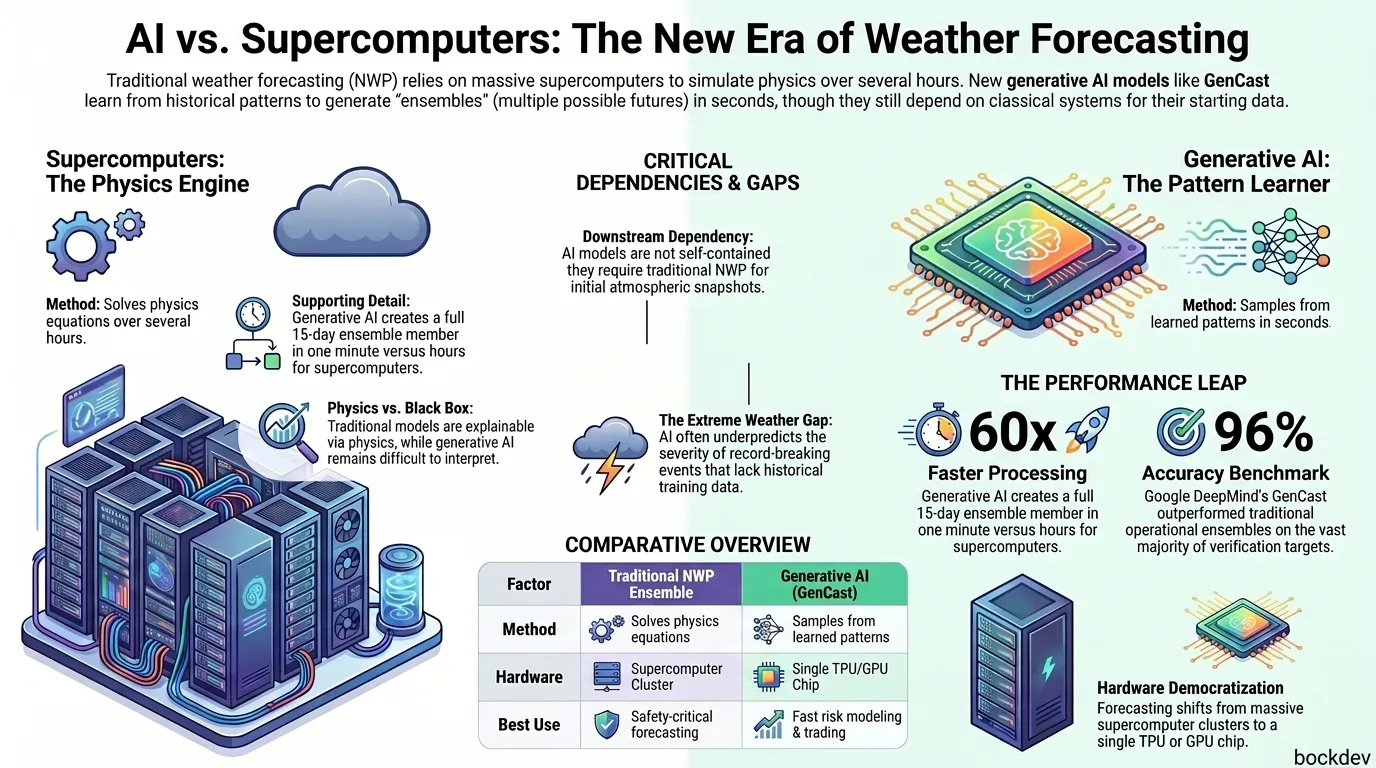
Generative AI models like GenCast now create weather ensembles in minutes instead of hours, changing how forecasts are built and used.
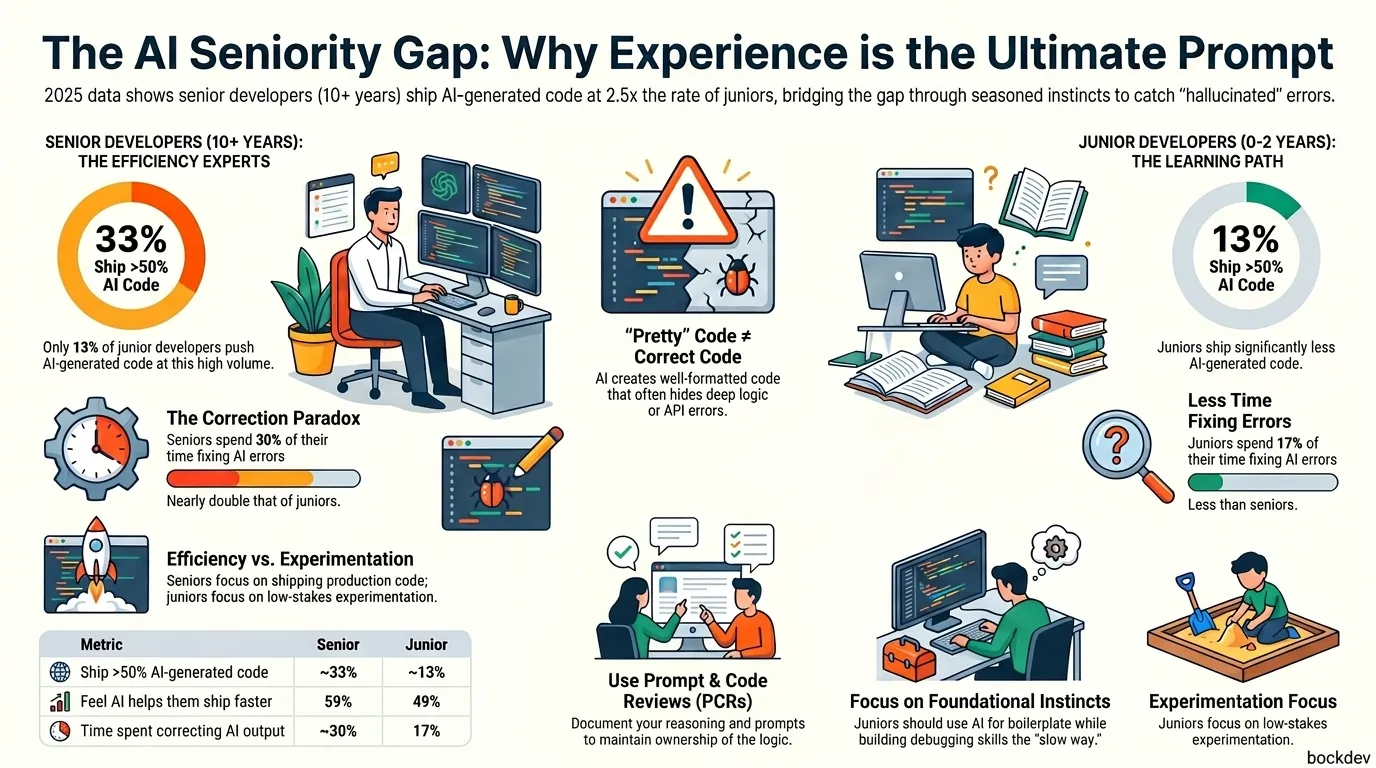
Senior developers ship more AI generated code than juniors. Here's the data, the reasons behind it, and what junior devs should do differently.