Git is a distributed version control system that tracks code changes, enabling multiple developers to collaborate seamlessly on a codebase. By mastering the core Git commands, developers can manage project history, work on isolated features via branching, merge contributions, and maintain an organized, collision-free workflow. This Git 101 guide covers the essential commands you need to know.
1. Starting a Git Project
git init -> Create a new, empty Git repository in the current directory.
git clone <project_url> -> Copy an existing remote repository into a local folder.
Cloning automatically sets a remote named origin.
Remote vs Alias
Remote -> A link (URL) to another Git repository.
Alias -> A nickname for that remote URL, so you don't have to type the full URL.
By convention, origin is the alias for your own fork/cloned copy, while upstream usually refers to the original repo you forked from.
2. Configuring Git Settings
git config -> Set or view configuration (e.g., username, email, editor).
git remote add [alias] <project_url> -> Add a shortcut name (alias) for a remote repository.
3. Branching and Navigation
git branch -> List, create, or delete branches.
git branch -d [branch_name] -> Delete branches.
git branch -m [old_branch_name] [new_branch_name] -> Rename branch.
git checkout -> Switch branches or restore files.
git checkout -b [branch_name] -> Create a new branch and switch to it.
4. Preparing and Staging Changes
git status -> Show modified files and staging status.
git add [file] -> Stage a file for the next commit.
git add . -> Stage all changed files in the directory.
git mv [file] -> Rename or move a file and stage the change.
git rm [file] -> Remove a file and stage the deletion.
git diff -> Show changes not yet staged.
5. Saving Progress: Making Commits
6. Working with Remotes and Collaborators
git fetch [alias] -> Download changes from a remote without merging.
git pull [alias] [branch] -> Fetch and merge changes from a remote branch.
git push [alias] [branch] -> Upload local commits to a remote branch.
7. Stashing and Discarding Local Changes
NOTE
- Use
git stash if you may want your changes later. - Use
git checkout . if you want to throw away changes permanently.
8. Combining Branches: Merges and Rebases
Flow to collaborate with someone else's repo
- Local branch: Create/edit code locally.
- Your own repo (fork): Push changes to your fork (your copy of the original repo).
- PR (Pull Request): Open a PR from your fork’s branch to the original repo’s branch. This is required since you usually have read-only access to the original repo.
- Original repo: Maintainers review and merge your PR.
9. Viewing History: Logging
git log -> Show commit history.
git log [branch_name] -> Show commit history of a specific branch.
git log --oneline → Show condensed commit history (one line per commit).
Commit history
5e7bfbf (HEAD -> main, origin/main) Fixed feature bug
5a50202 Added dashboard page
0d2fd4e Initial commit
10. Editing History and Undoing Changes
git reset --hard -> Discard all local changes (unstaged and staged) and resets files to the latest commit.
3 states of tracked files
- Unmodified: Matches the last commit.
- Modified (Unstaged): Changed in your working directory but not yet staged.
- Staged: Added to the index and ready for commit.
git reset --hard HEAD~1 -> Remove the latest commit completely.
Let's say the last commit was:
Last commit
echo "hello" > newfile.txt
git add newfile.txt
git commit -m "add new file"
After running git reset --hard HEAD~1:
newfile.txt is gone (deleted from your folder).
Commit "add new file" is gone.
Repository is back to the state before you created newfile.txt.
Git FAQ: Troubleshooting Common Issues
1. Why use -u (--set-upstream) in git push -u origin main?
Without -u
git push origin main
git pull origin main
You always need to specify the remote + branch if not using -u.
With -u
git push -u origin main
git push
git pull
Git remembers the tracking relationship. After the first push, you can simply run git push or git pull and Git will know you mean origin main.
2. How to add file(s) after git commit?
To add file(s) after git commit, run:
Git
git add [file]
git commit --amend
3. git fetch vs git pull?
git fetch downloads new branches from the remote while git pull is git fetch + git merge.
4. No-conflict push vs rejected push?
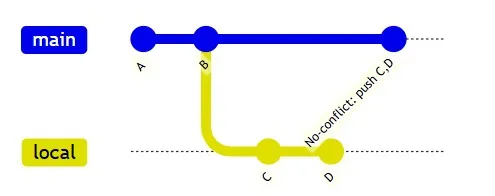
No-conflict push
Happens when your local branch is ahead of the remote branch (remote doesn’t have new commits).
If there’s no conflict, remote will fast-forward update.
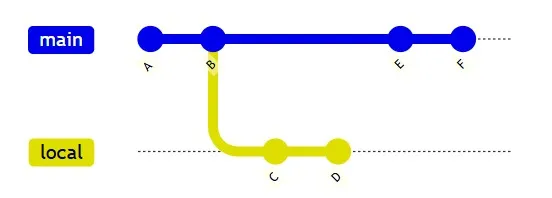
Rejected push
Happens when the remote branch has commits that your local branch doesn’t.
git push rejected because commits E and F exist only on remote.
5. How to resolve a merge with conflicts?
Steps to resolve a merge with conflicts
- First
git pull - Edit the conflicting files to resolve the conflicts.
git add .git commitgit push to update the remote branch.
6. How to undo git merge?
Run git merge --about if not committed yet.
Run git reset --hard HEAD~1 if committed but not pushed.
7. git merge main vs git merge origin/main?
git merge main is local branch merge while git merge origin/main is remote-tracking branch merge.
Local branch merge
git checkout new-feature
git merge main
Remote-tracking branch merge
git fetch origin
git checkout new-feature
git merge origin/main
git fetch origin updates your local copy of remote-tracking branches (like origin/main).
You are on new-feature.
Git merges origin/main (remote-tracking branch / local-copy of remote branch) into your local branch, new-feature.
8. What are the best practices when using Git?
Commit Often but Meaningfully
Make small, focused commits that represent one logical change.
Write clear, descriptive commit messages (e.g., Fix auth bug instead of Update code).
Use Branches Strategically
Keep your main or master branch stable.
Create new branches for new features, bug fixes or experiments.
Pull Before You Push
- Always
git pull before pushing changes to avoid conflicts.
Keep Local Repo Clean
- Remove unneeded branches by
git branch -d [branch_name] after merging.
Use .gitignore Wisely
- Exclude build files, temporary files, secrets, and dependencies you don’t want in Git.